| 일 | 월 | 화 | 수 | 목 | 금 | 토 |
|---|---|---|---|---|---|---|
| 1 | 2 | 3 | 4 | 5 | 6 | 7 |
| 8 | 9 | 10 | 11 | 12 | 13 | 14 |
| 15 | 16 | 17 | 18 | 19 | 20 | 21 |
| 22 | 23 | 24 | 25 | 26 | 27 | 28 |
- 서버 컴포넌트
- 힘들었던 한주
- axios
- 개발일지
- CSS
- git flow finish
- 백준
- jQuery
- api 라우트
- Next.js
- Main
- git flow start
- 책으론 원리만
- freecodecamp
- fetch pull 차이
- 다시 홧팅
- 실무는 공식문서로
- 끝까지 잘 마무리하기
- JavaScript
- Mac
- HTML
- git
- TS
- 클라이언트 컴포넌트
- javascript30
- js
- 차이점
- 바닐라JS
- 공부할 거 넘많다~
- AJAX
- Today
- Total
다다의 개발일지 6v6
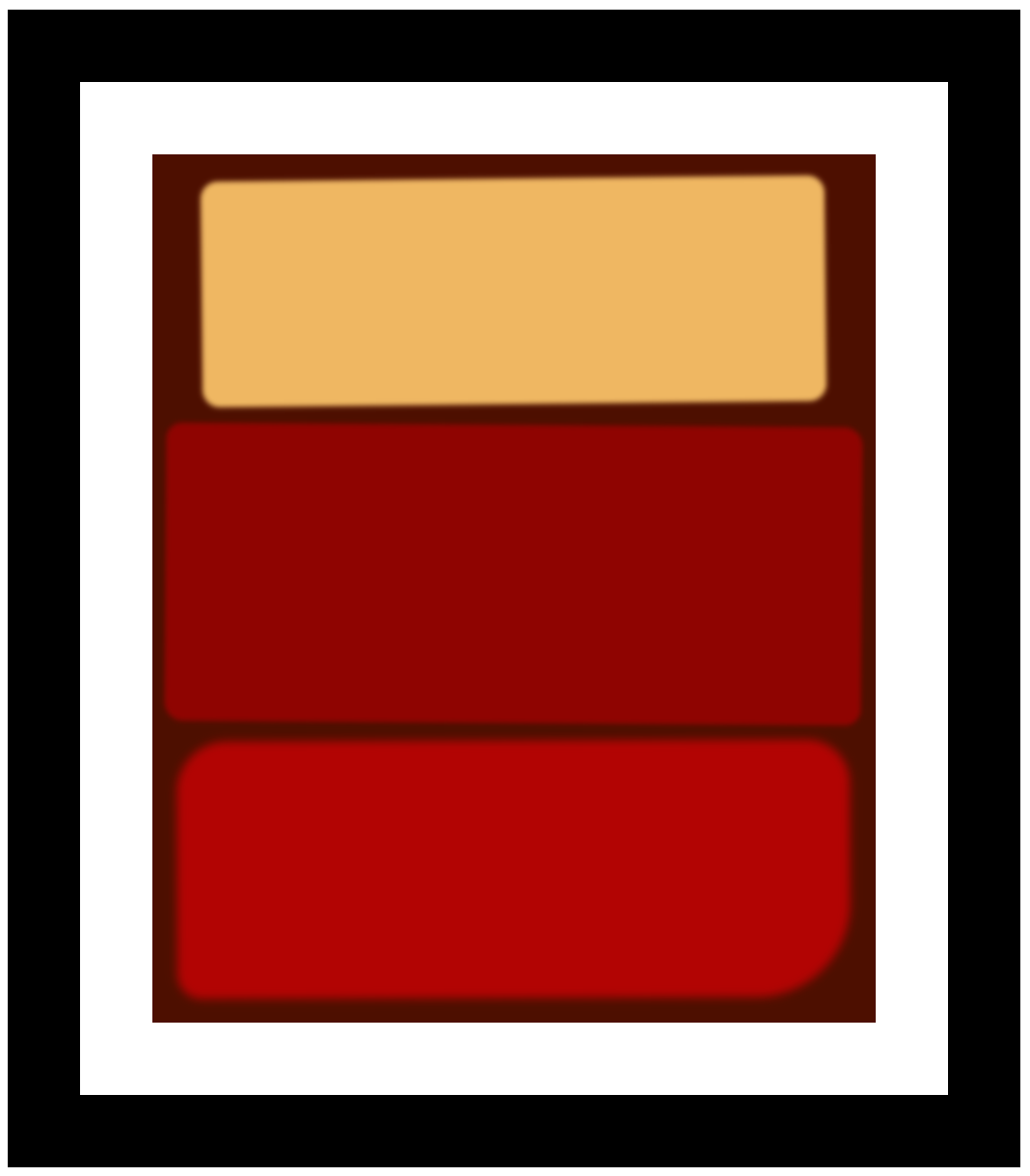
[CSS] Learn the CSS Box Model by Building a Rothko Painting - 박스 모델 정리! 본문
[CSS] Learn the CSS Box Model by Building a Rothko Painting - 박스 모델 정리!
dev6v6 2025. 2. 15. 17:45https://www.freecodecamp.org/learn/2022/responsive-web-design/learn-the-css-box-model-by-building-a-rothko-painting/step-1
www.freecodecamp.org
이제 html 첫 틀은 손에서 바로바로 나온다! ㅎㅂㅎ
앞에서 css 계속 다뤘어서 이번 과정에서는 썼던 걸 좀 더 꼼꼼하게 정리하고 가는 느낌이다. 좋다ㅏ

택배 상자를 예로 들면
border (상자)로 감싸져있는 content (상품, 물건) 그 물건을 감싸는 뽁뽁이 (padding) 그리고 택배 상자끼리 공간을 나누는 겉 뽁뽁이..?(margin)
Margin is the area outside of the box, and can be used to control the space between other boxes or elements.
margin은 다른 상자들과 요소들 사이에 공간을 줄때 사용한다!
문제 발생!! margin: 20px auto를 했는데 부모 요소(canvas)전체 가 아래로 내려옴.

이 상황을 이해하려면 CSS 박스 모델과 마진 상쇄(Margin Collapse) 개념을 알아야 한다.
문제 상황
- .one 요소가 가로 중앙 정렬됨.
- margin: 20px auto;
- .one의 margin-top 값이 부모 컨테이너를 뚫고 위로 밀려남.
- margin-top이 적용될 때, 부모 요소의 padding이나 border 없이 직접 포함되어 있으면 부모 위쪽까지 영향을 미쳐 전체 캔버스를 아래로 밀어버릴 수 있는데
- 이를 마진 상쇄(Margin Collapse) 라고 한다.
🛠 해결 방법: overflow: hidden; 적용
- 부모 요소(canvas 같은 요소)에 overflow: hidden;을 적용하면 부모가 자식의 마진을 "잘라내는" 효과가 나서, .one의 margin-top이 부모 바깥으로 튀어나가는 걸 방지할 수 있다.
.parent {
  overflow: hidden;
}
💡 다른 해결 방법
- 부모 요소에 padding-top 추가 → 마진이 패딩과는 상쇄되지 않음!
- 부모 요소에 display: flex; flex-direction: column; 적용 → 마진 상쇄 방지됨.
- 부모 요소에 border-top: 1px solid transparent; 추가 → 마진 상쇄 막기 가능.
CSS 에서 % 범위
CSS 코드에서 width: 91%;와 height: 28%;가 적용되는 기준은 부모 요소의 크기이다.
- 부모 요소가 body라면?
- 전체 화면(viewport)의 91%와 28%로 계산됨.
- 즉, 화면 너비와 높이를 기준으로 크기가 정해진다.
- 부모 요소가 특정 div라면?
- 그 div의 크기를 기준으로 퍼센트가 적용됨.
- 만약 div의 너비가 500px이면, width: 91%;는 500 * 0.91 = 455px
filter: blur(px);
자식 요소까지 모두 블러처리 됨. px이 높을 수록 더 흐릿해짐!
그리고 자식 요소에 또 블러처리 하면 그 수만큼 추가로 더 흐릿해짐.
예) 부모 (2px) > 자식 (1px) 이렇게 두번 블러처리하면 자식은 3px만큼 블러처리가 되는 거임.
- filter: blur(px); → 요소 자체(부모+자식 포함) 블러 처리
- 레이어 개념이라 여러 번 사용하면 점점 더 흐려짐.
index.html
<!DOCTYPE html>
<html lang="en">
  <head>
    <meta charset="UTF-8">
    <title>Rothko Painting</title>
    <link href="./styles.css" rel="stylesheet">
  </head>
  <body>
    <div class="frame">
      <div class="canvas">
        <div class="one"></div>
        <div class="two"></div>
        <div class="three"></div>
      </div>
    </div>
  </body>
</html>
styles.css
.canvas {
  width: 500px;
  height: 600px;
  background-color: #4d0f00;
  overflow: hidden;
  /* filter: blur(2px); */
}

.frame {
  border: 50px solid black;
  width: 500px;
  padding: 50px;
  margin: 20px auto;
}

.one {
  width: 425px;
  height: 150px;
  background-color: #efb762;
  margin: 20px auto;
  box-shadow: 0 0 3px 3px #efb762;
  border-radius: 9px;
  transform: rotate(-0.6deg);
}

.two {
  width: 475px;
  height: 200px;
  background-color: #8f0401;
  margin: 0 auto 20px;
  box-shadow: 0 0 3px 3px #8f0401;
  border-radius: 8px 10px;
  transform: rotate(0.4deg);
}

.one, .two {
  filter: blur(1px);
}

.three {
  width: 91%;
  height: 28%;
  background-color: #b20403;
  margin: auto;
  filter: blur(2px);
  box-shadow: 0 0 5px 5px #b20403;
  border-radius: 30px 25px 60px 12px;
  transform: rotate(-0.2deg);
}